
Choose the right Abbott app
In France, FreeStyle LibreLink - FR is for FreeStyle Libre and Libre 2 sensors. FreeStyle Libre 3 - FR is for Libre 3 and Libre Select sensors. First check that a glucose value appears in that app.
LibreLinkUp guide
Gluco uses the LibreLinkUp account that already receives readings shared by the official Abbott app. Simple rule: if LibreLinkUp does not show readings yet, Gluco cannot retrieve them yet.
In France, FreeStyle LibreLink - FR is for FreeStyle Libre and Libre 2 sensors. FreeStyle Libre 3 - FR is for Libre 3 and Libre Select sensors. First check that a glucose value appears in that app.
LibreLinkUp is the companion app that receives shared data. The sensor wearer must send an invitation to the email address of the LibreLinkUp account you want to connect.
LibreView is mainly Abbott's cloud account and sync service. For Gluco, enter LibreLinkUp credentials, not a standalone LibreView account.
These visuals come from the official App Store pages for Abbott and LibreLinkUp apps. The exact UI can vary by country, OS and installed version.
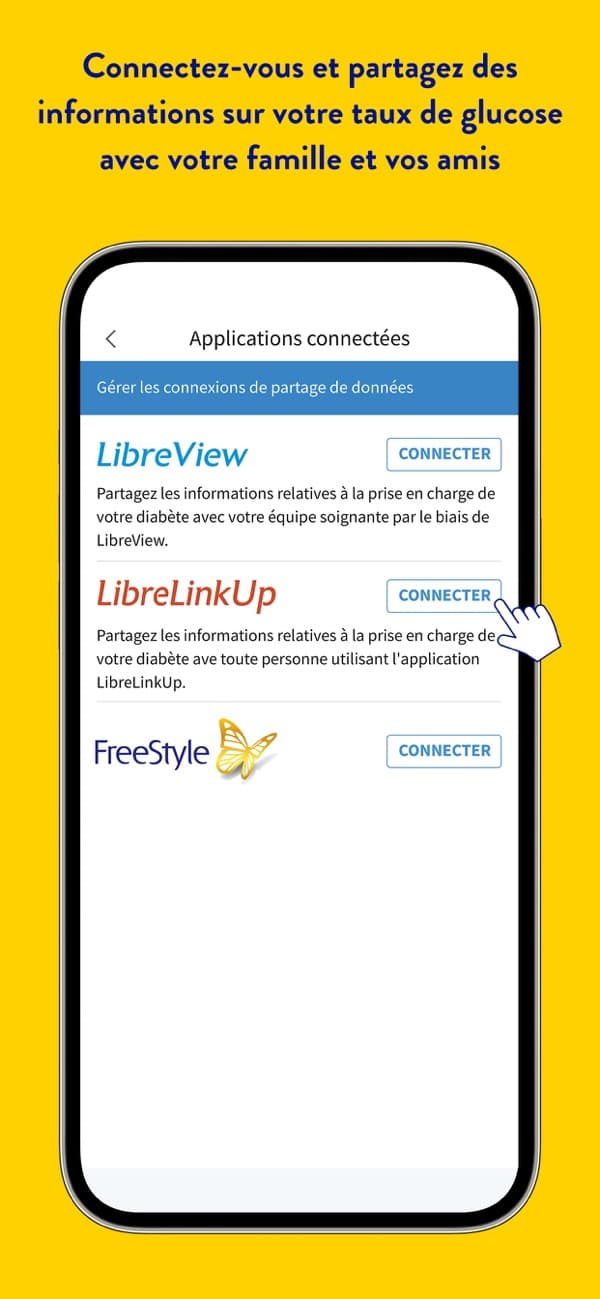
In the Abbott app, the LibreLinkUp invitation starts from the connected apps menu.
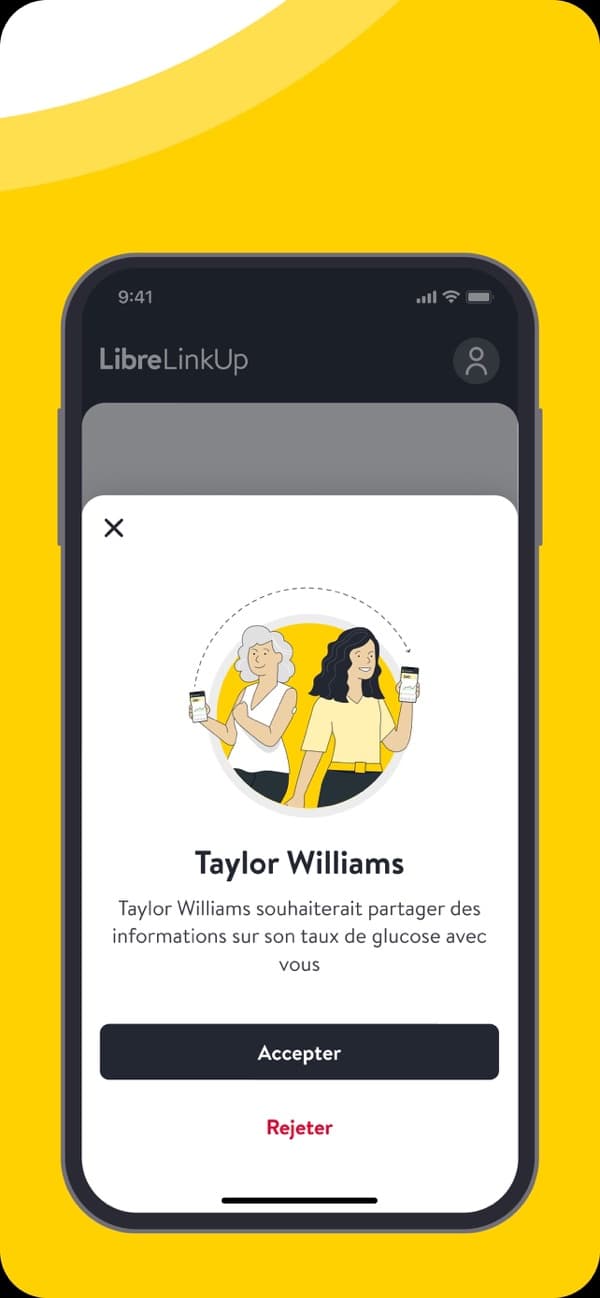
The invited account must accept the request before the data can be visible in Gluco.
Source: App Store - LibreLinkUp
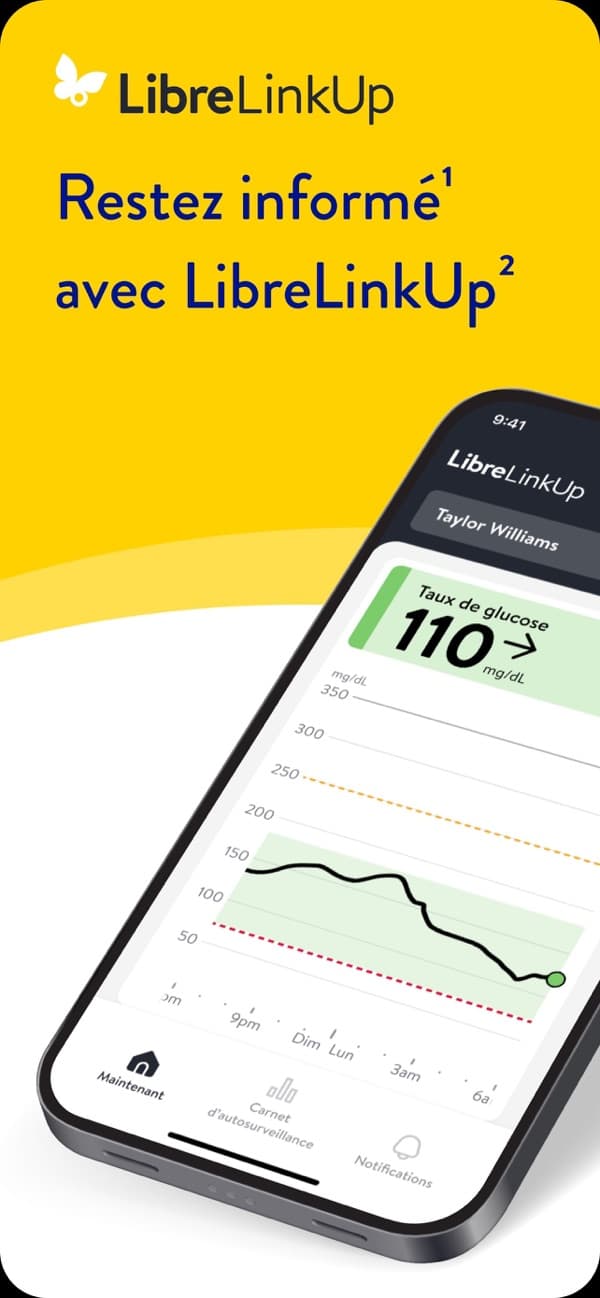
The right account for Gluco is the one that already shows readings in the official LibreLinkUp app.
Source: App Store - LibreLinkUp
Use FreeStyle LibreLink - FR for FreeStyle Libre or Libre 2, and FreeStyle Libre 3 - FR for Libre 3 or Libre Select. Before going further, make sure the sensor already shows a value in that app.
Abbott requires the sensor wearer to be signed in to their account in the FreeStyle Libre app before sending a sharing invitation.
On the sensor wearer's phone, open Menu, then Share or Connected Apps. Under LibreLinkUp, choose Connect or Manage, then Add Connection. Enter the first name, last name and exact email address of the LibreLinkUp account to invite.
Install LibreLinkUp if needed, sign in with the invited email, verify the account if Abbott asks, then accept the sharing request. LibreLinkUp should then show readings.
In Gluco, open the LibreLinkUp screen and enter the same email and password used in LibreLinkUp. The correct account is always the one that already sees glucose in the official app.
If data is missing or very delayed, first check whether the issue is already visible in LibreLinkUp. If it is, fix the Abbott sharing setup before retrying Gluco.
With internet on both phones, Abbott says LibreLinkUp users generally see data within seconds. A delay over 30 minutes is not expected: check internet access, the sensor, Bluetooth/NFC signal depending on the model, a recent scan when needed, then Abbott's status page.
Issue
The invitation does not appear
Check
Does the email entered in FreeStyle Libre exactly match the LibreLinkUp account?
Simple action
Reopen LibreLinkUp. If nothing appears, ask for a new invitation to the right address.
Issue
LibreLinkUp shows No Recent Data or ---
Check
Internet on both phones, active sensor, sensor signal, recent scan depending on the sensor.
Simple action
Restore internet, check the sensor and scan again if your setup depends on scans.
Issue
More than 30 minutes delayed
Check
Is the delay already present in LibreLinkUp?
Simple action
Check Abbott status and fix the Abbott or network issue first.
Issue
Several Abbott accounts exist
Check
Which account already sees the graph in LibreLinkUp?
Simple action
Use only that LibreLinkUp account in Gluco.
Issue
Connection fails across countries
Check
Are the Abbott/LibreView accounts in the same region?
Simple action
Use accounts from the same region or contact Abbott support.
LibreLinkUp and LibreView are for viewing, sharing and analyzing data. They do not replace the official app or reader for immediate treatment decisions. If symptoms do not match, hypoglycemia is suspected, or a medical decision is needed, follow your clinician's guidance.